
PTE Sub-Scores Extension
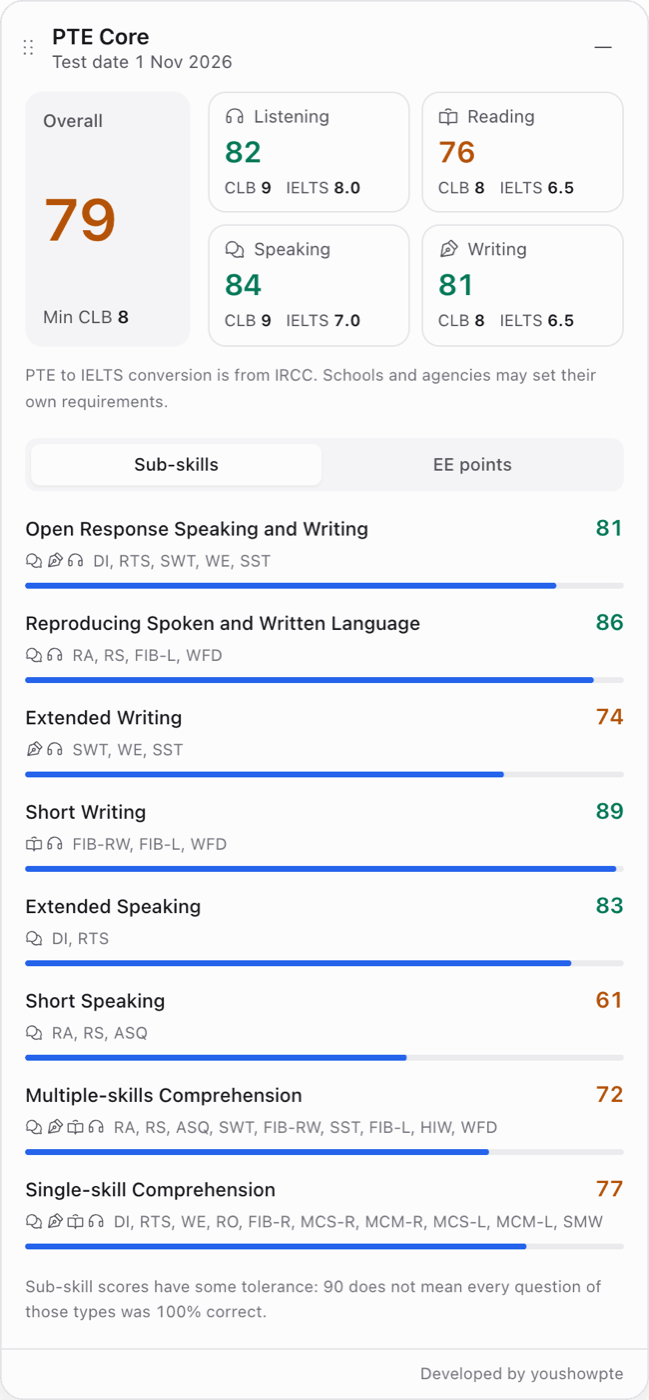
Open your score report on the official myPTE site and the extension shows all 8 sub-skill scores, IELTS equivalents, CLB levels and Express Entry points, plus question-type estimates for PTE Academic. No code lookups, no sharing your report.
- 8 sub-skill scores
- IELTS equivalents
- CLB / EE points
- Question-type estimates
- New report format (7 Aug 2025)
Works in Chrome, Edge and other Chromium-based browsers.
01 · Manual install
Install in four steps
Until the store listing is approved, install the package manually. It is the same extension.
- 1
Download and unzip
Download pte-subskill-1.7.2.zip with the button above, then unzip it into a folder: double-click it on a Mac, or right-click and choose “Extract All” on Windows.
Keep the unzipped folder somewhere permanent, such as Documents. Deleting or moving it after installing turns the extension off.
- 2
Open the extensions page
Paste this address into the Chrome address bar and press Enter. Or open the “⋮” menu → Extensions → Manage Extensions.
chrome://extensionsIn Edge, use this address instead:
edge://extensions - 3
Turn on Developer mode
Switch on “Developer mode” at the top right of the page (in Edge it is in the left sidebar). A “Load unpacked” button appears at the top left.
- 4
Load the unpacked extension
Click “Load unpacked”, select the folder from step 1 (the one that directly contains manifest.json) and click Select.
When the “PTE Sub-Scores Breakdown” card appears, you are done. Pin it to the toolbar from the puzzle-piece icon at the top right.
02 · How to use
Open a score report, see the breakdown
- 01
Sign in to myPTE: mypte.pearsonpte.com
- 02
Click “My Activity” in the top bar.
- 03
Find the score report you want and click “View Score”.
- 04
The panel appears on the page as soon as the report opens. Drag it anywhere, or collapse it to a single score.
FAQ
Chrome says “Manifest file is missing or unreadable”+
The wrong folder was selected. Choose the unzipped folder that directly contains manifest.json, not the zip file and not a folder one level above it.
Does the extension upload my scores?+
No. It only runs on mypte.pearsonpte.com, reads the score report that page already loads, and does every calculation locally in your browser. Nothing is sent to any server.
How do I update to a new version?+
Download and unzip the new package, replace the contents of your old folder, then click the reload button on the extension's card on the extensions page.
I opened my score report but no panel appears+
Check that the extension is switched on in the extensions page, then reload the score report. The extension reads the data as the report opens, so install it first, then open the report.
Can I use these conversions as official results?+
No. IELTS and CLB equivalents come from the public Pearson and IRCC tables, and question-type scores are estimates from your sub-scores. Use them for study planning and check the official requirements.